
Quick Start
Install DryRun Security on GitHub or GitLab and start scanning pull requests in minutes.
Getting Started #
DryRun Security is an AI-native application security platform that reviews every pull request for vulnerabilities in real time. This guide helps you install DryRun Security on GitHub or GitLab, run your first scan, and configure the platform to match your workflow.
Deployment Rollout Best Practices #
Follow these steps to get the most out of DryRun Security:
| Step | Action | Description |
|---|---|---|
| 1 | Install DryRun Security | Connect your repositories on GitHub or GitLab so every pull request is automatically reviewed. |
| 2 | DeepScan | Run a full-repository scan to establish your baseline security posture. |
| 3 | Review findings in the Risk Register | Examine and prioritize vulnerabilities surfaced across your repositories. |
| 4 | Triage false positives as needed | Suppress findings that are not applicable so future scans stay focused on real risks. |
| 5 | Configure context | Provide repository-level context so DryRun Security's analysis is tailored to your codebase. |
| 6 | Create Custom Code Policies | Define organization-specific security rules written in plain English. |
| 7 | Configure integrations and notifications | Route alerts to Slack, webhooks, or other channels your team already uses. |
| 8 | Enforcement | Configure blocking rules to prevent PRs from merging when findings exceed your defined severity or policy thresholds. |
| 9 | Unlock the power of Code Security Intelligence | Query the intelligence index to track features, trends, and risks across your organization. |
Supported Platforms #
| Platform | Supported Versions | Setup Guide |
|---|---|---|
| GitHub | GitHub.com (Cloud) | GitHub Installation |
| GitHub | GitHub Enterprise Server (On-Premises) | GitHub Enterprise Server Installation |
| GitLab | GitLab.com (Cloud) | GitLab Installation |
| GitLab | GitLab Self-Managed (On-Premises) | GitLab Self-Managed Installation |
Installation Requirements #
Before installing DryRun Security, confirm the account performing the installation has the required permissions for your platform:
| Platform | Who Can Install | Access Granted |
|---|---|---|
| GitHub | Organization admin, or Enterprise admin if an enterprise account is in use | GitHub App with read access to code and metadata, and read/write access to checks, issues, and pull requests |
| GitLab.com | System Administrator or Group Owner | API access via a scoped Group Access Token |
| GitLab Self-Managed | GitLab Administrator to create the service account; Group Owner of the top-level group | API access via a service account personal access token, plus a group-level OAuth application for sign-in |
GitHub Installation #
Authorize and Install the DryRun Security GitHub Application #
Note: You must be signed in as an organization admin (or an enterprise admin, if your organization is part of a GitHub Enterprise account) to install the GitHub App.
-
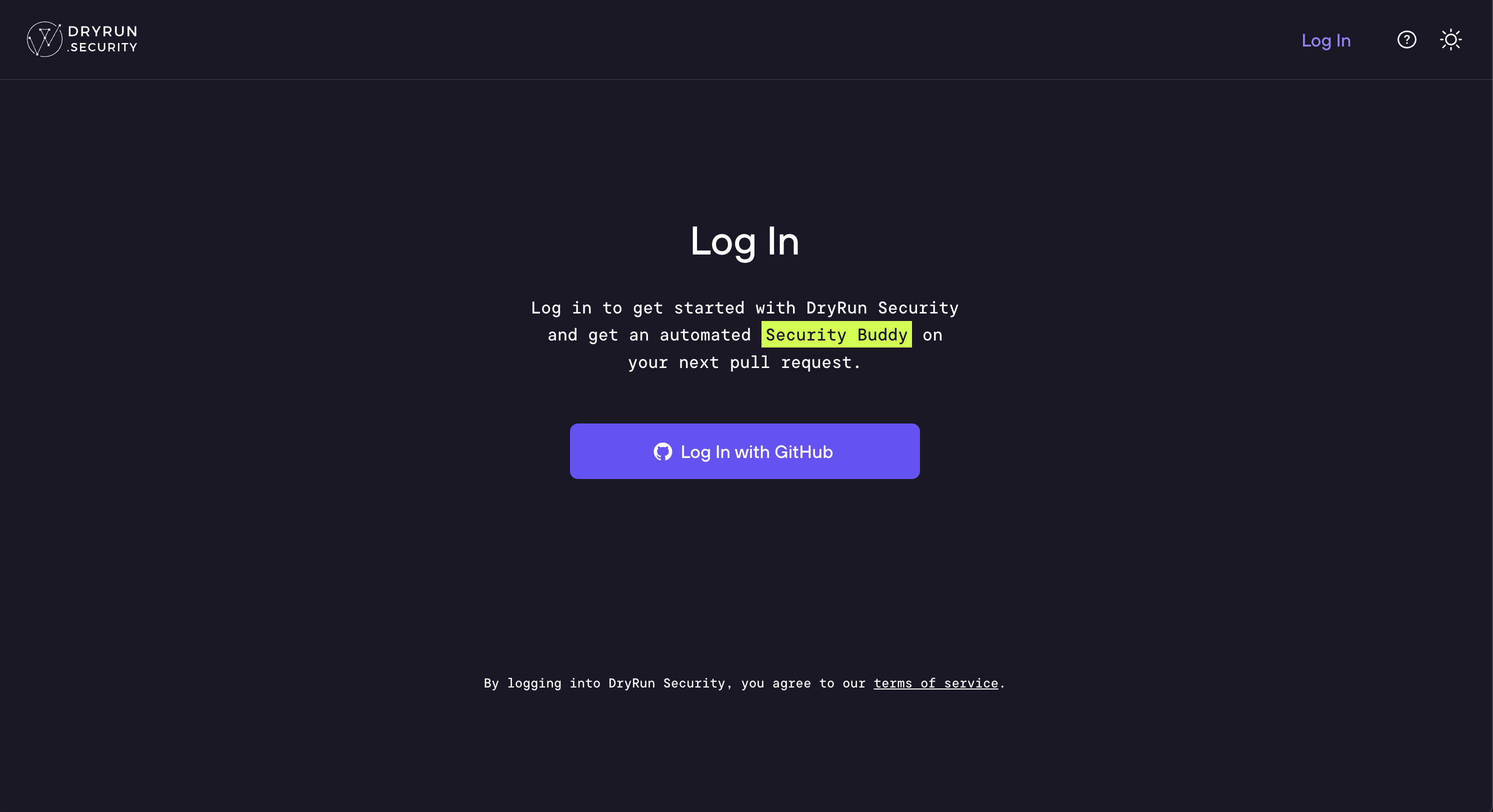
Navigate to https://app.dryrun.security and click the Log in with GitHub button.
-
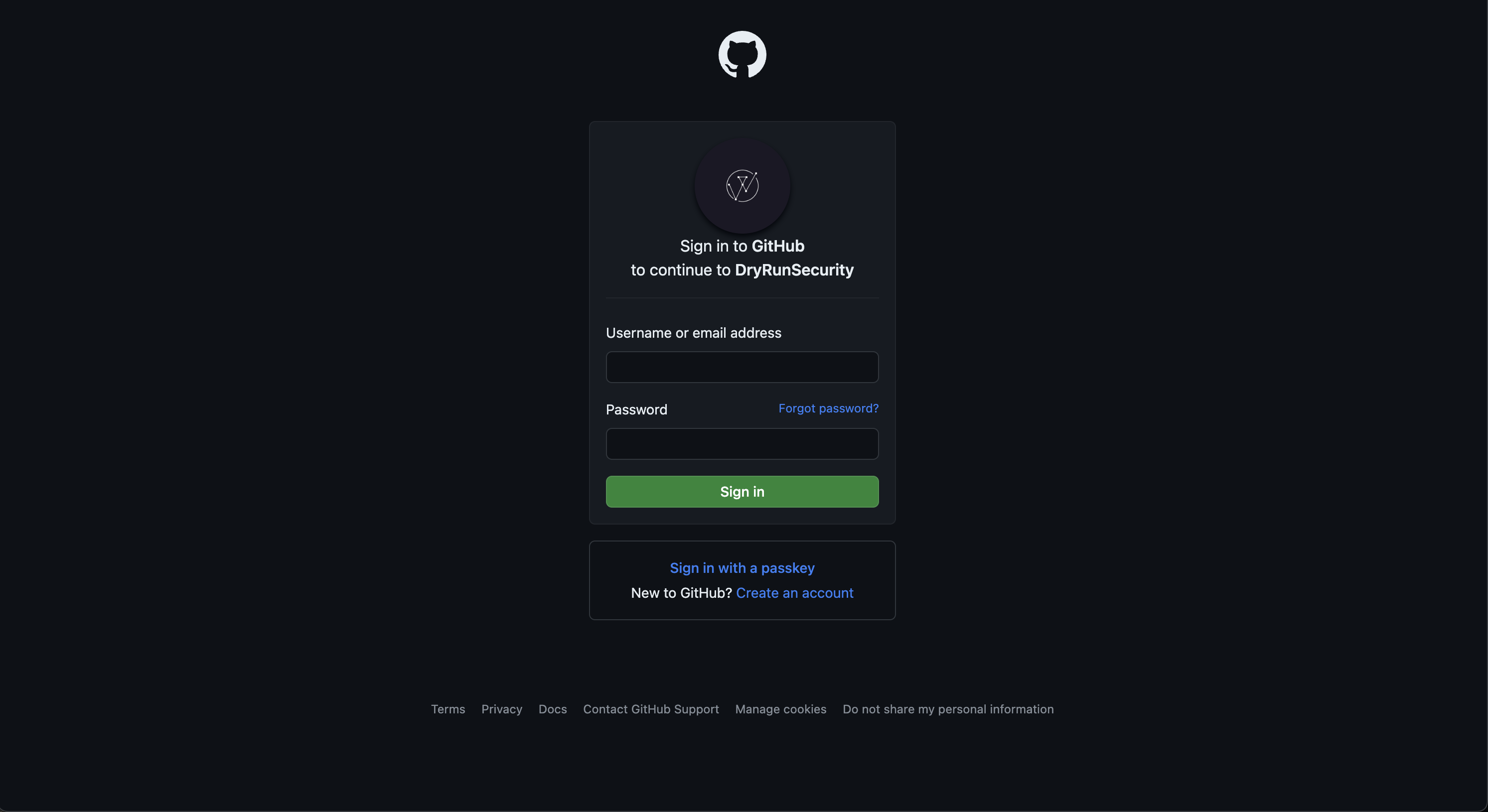
Log in to the GitHub account where DryRun Security will be installed.
-
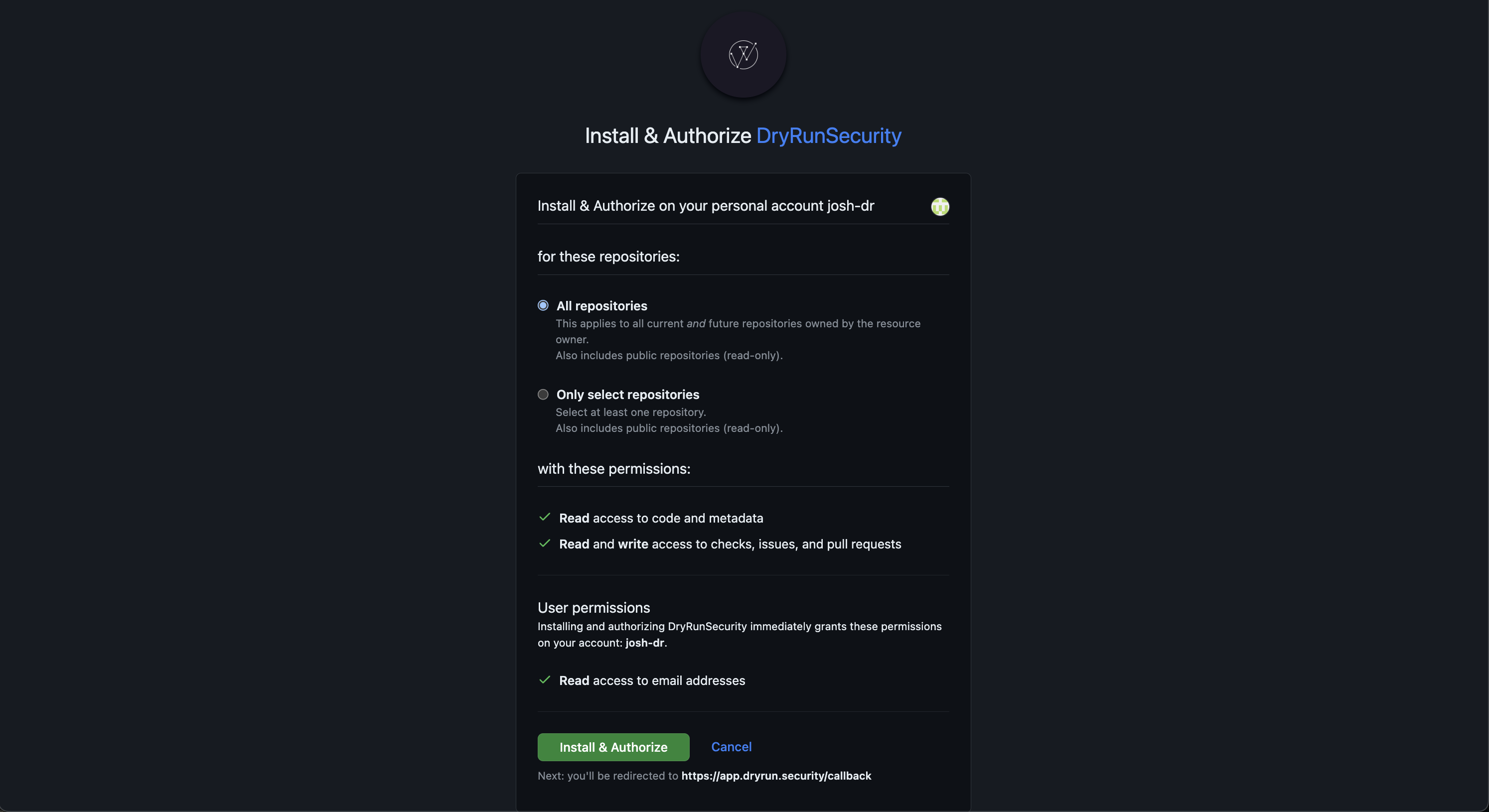
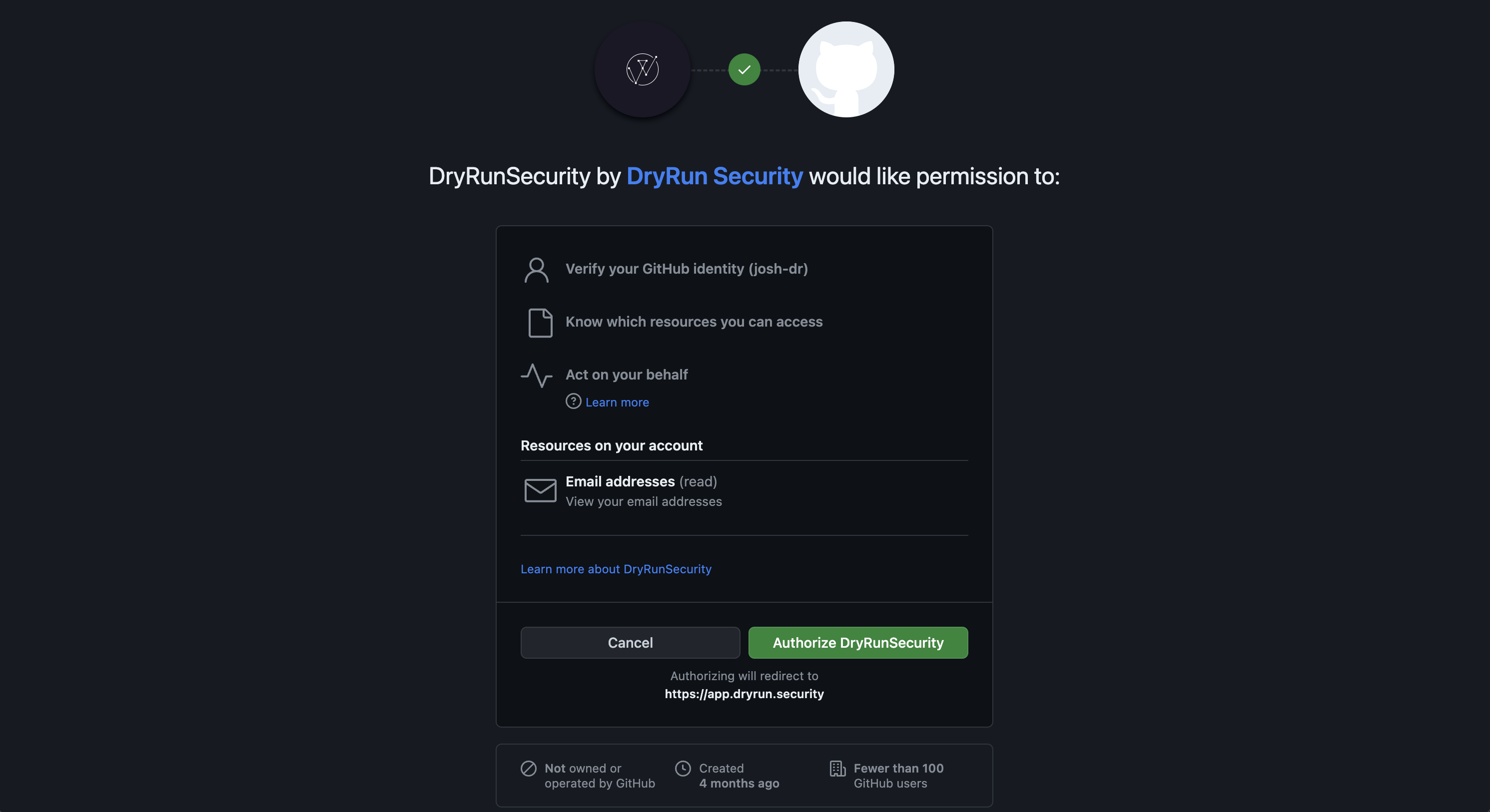
Authorize the DryRun Security GitHub Application by clicking the Authorize DryRunSecurity button.
Note: This is a standard authorization screen for all applications in GitHub.
-
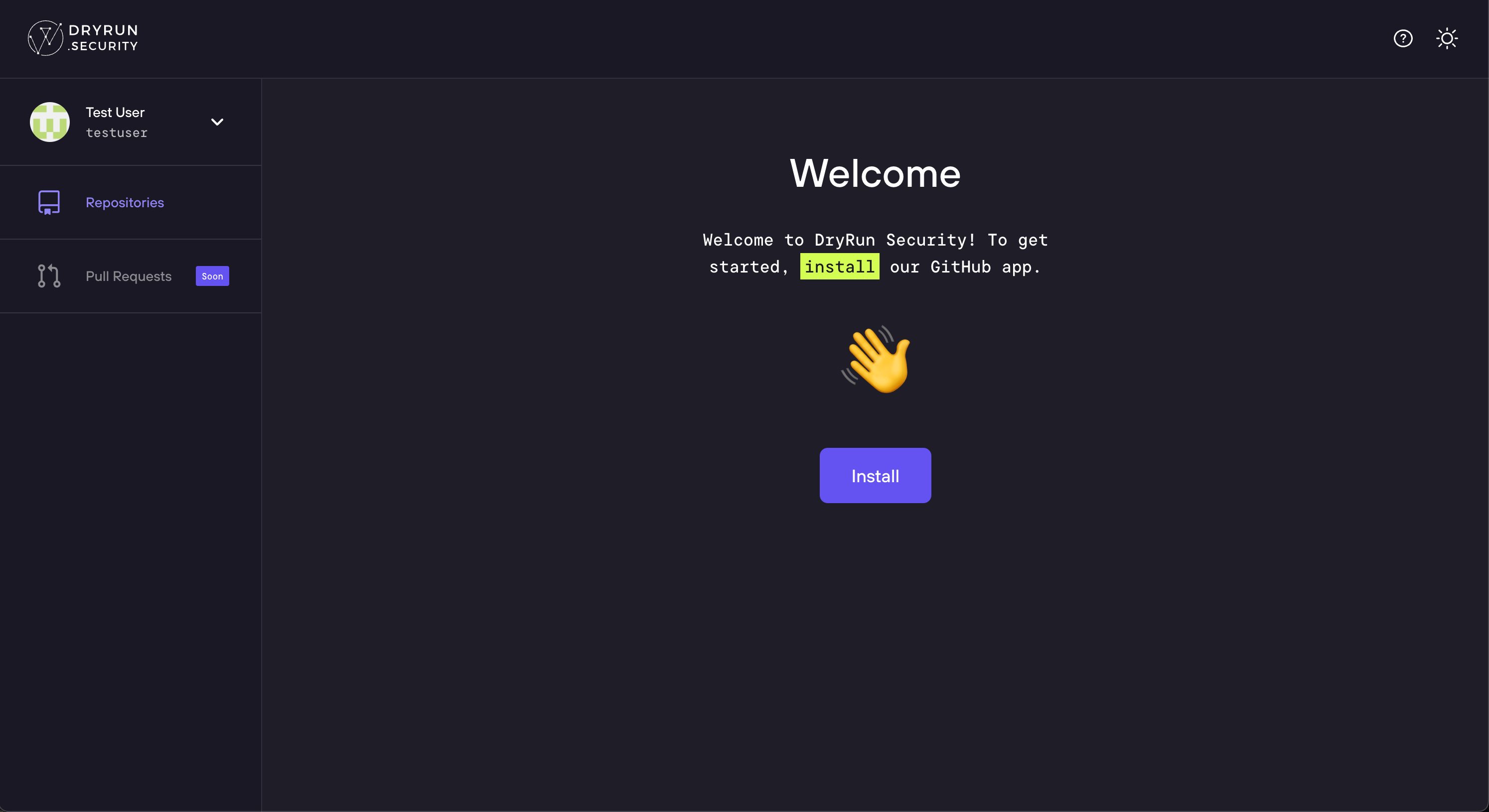
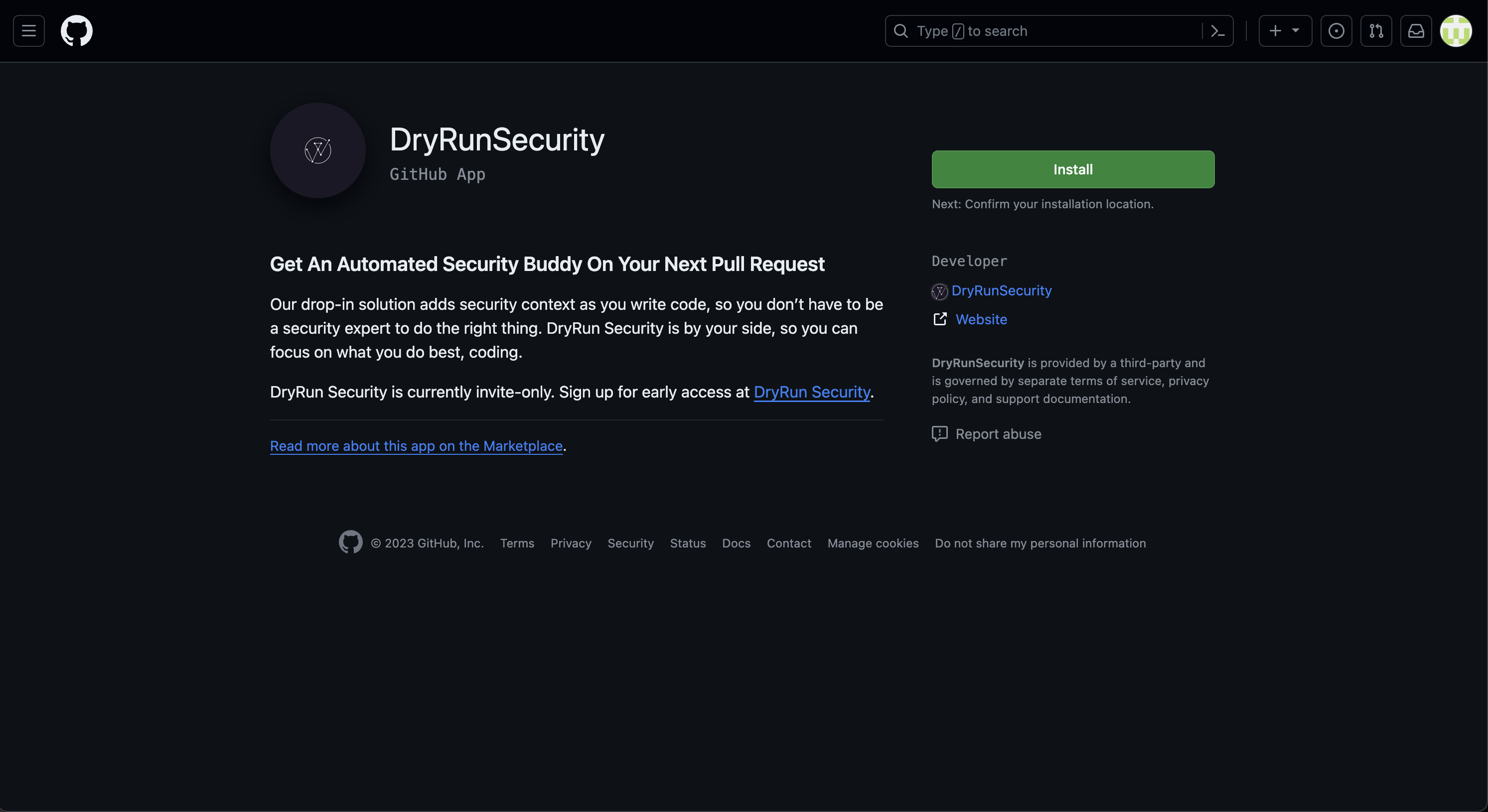
You'll be redirected to the DryRun Security portal. Click the Install button.
-
Click the Install button on the DryRunSecurity GitHub Application page.
-
Choose the GitHub repositories DryRun Security will run by selecting All Repositories or Only selected repositories.
-
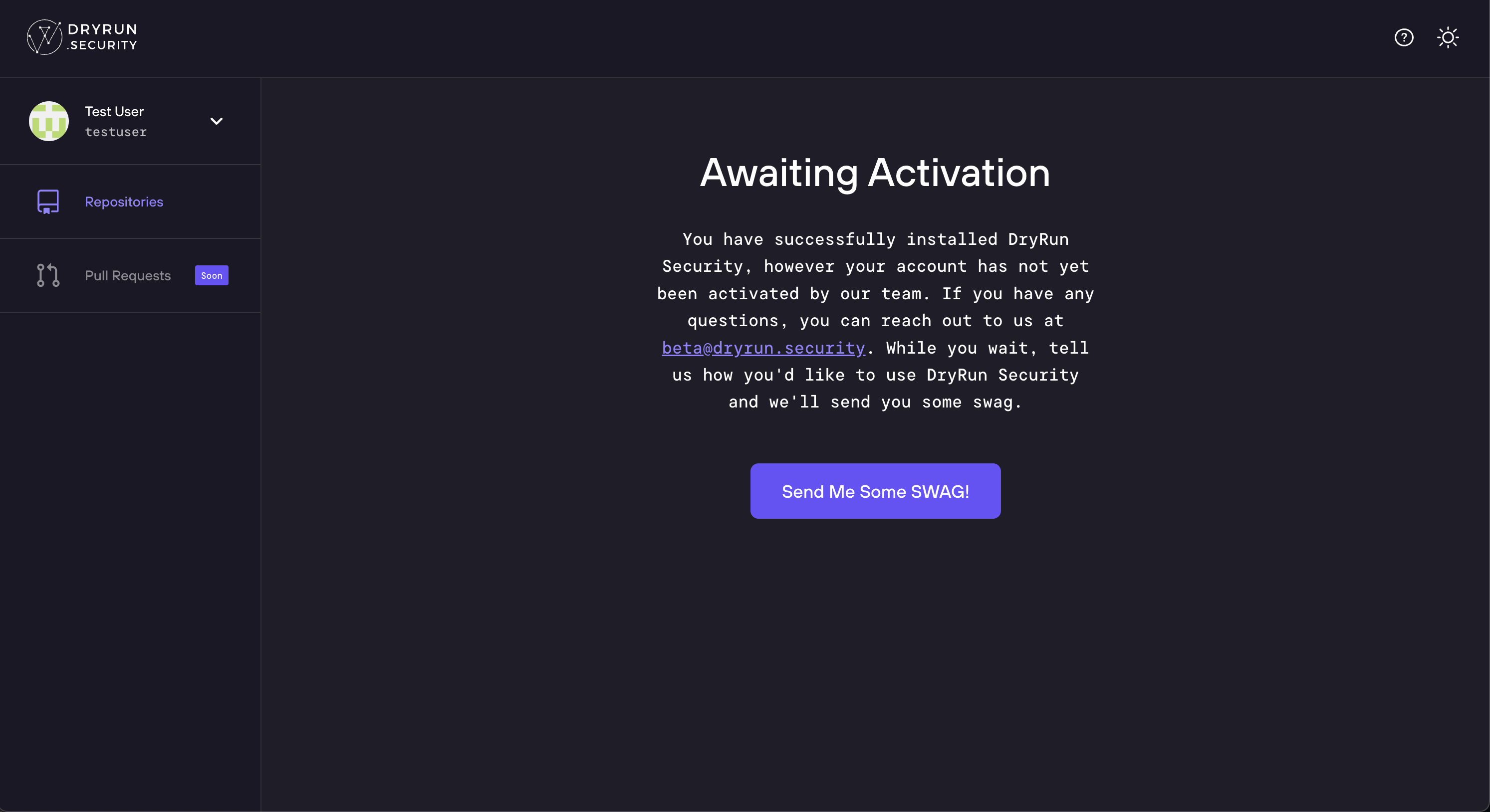
After step one your installation may be paused for up to 2 business days as we activate your account.
-
Once your account has been activated, you'll see the Installation Complete message the next time you visit https://app.dryrun.security.
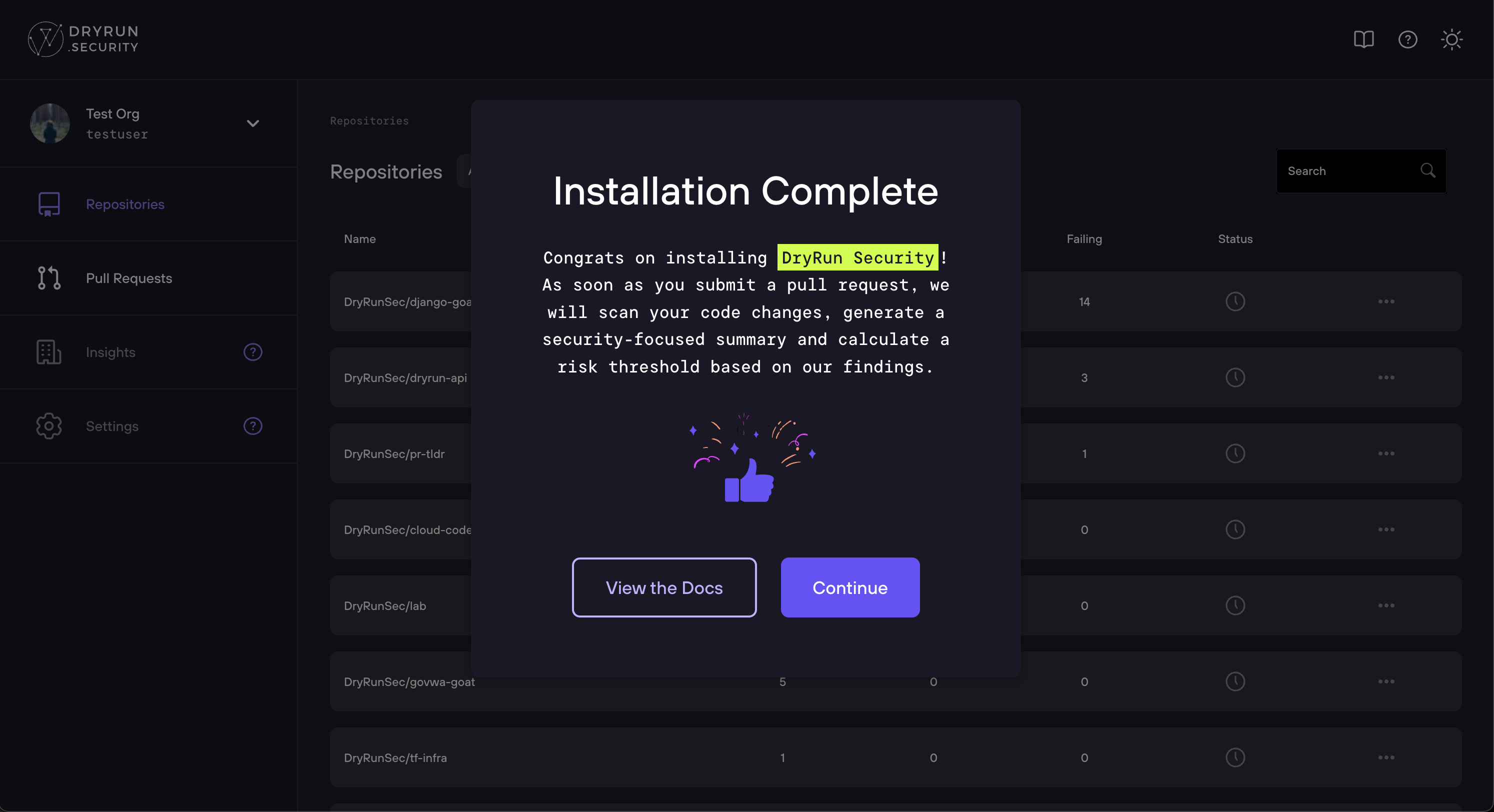
Congratulations! Installation is complete. At this point DryRun Security will run checks on your repository as code is committed to Pull Requests.
GitHub Enterprise Server Installation #
DryRun Security supports on-premises GitHub Enterprise Server (GHES) installations. Setup requires a brief coordination with the DryRun Security team before installation can proceed.
Step 1 - Initial Setup #
To get started, email hi@dryrun.security with your Enterprise Profile URL (e.g., https://github.yourcompany.com/enterprises/your-enterprise).
DryRun Security will verify that your GitHub Enterprise Server is reachable at the provided URL before installation can proceed. Once confirmed, DryRun Security will follow up with next steps.
Note: If your instance is not yet publicly accessible to DryRun Security over HTTPS, reach out and we can discuss connectivity options for your environment before moving forward.
Step 2 - Create the GitHub App #
DryRun Security will send you a link to begin installation. When you open it, you will see a Webhook Secret and a Create GitHub App button.
- Copy the Webhook Secret shown on the page - you will need to paste it into the GitHub App during creation
- Click Create GitHub App - this opens the GitHub App creation page in your GHES instance with DryRun Security's configuration pre-filled
- Paste the Webhook Secret into the Webhook Secret field in the GitHub App creation form
-
Click Create GitHub App on GitHub to complete the creation
Note: Depending on your GHES version, you may see a radio button at the bottom of the creation page to install this app for Any organization and any user. If present, select this option to ensure the app is available across your enterprise and not limited to the user creating it.
- Return to the DryRun Security setup page and click I've created my App - Continue to Step 2
Step 3 - Enter App Credentials #
Step 2 of the DryRun Security setup asks for credentials from the GitHub App you just created. In your GHES GitHub App settings page:
- Copy the App ID and Client ID shown at the top of the page
- Click Generate a new client secret and copy the value
- Scroll to the bottom of the settings page and click Generate a private key - this downloads a
.pemfile
Return to the DryRun Security setup page and fill in the App ID, Client ID, and Client Secret fields, then upload the .pem file. Click Submit. Once complete, you can install DryRun Security on your repositories.
Step 4 - Install on Repositories #
-
Navigate to https://app.dryrun.security and select your corporate organization from the org picker. The org picker may default to your personal GitHub account - make sure the correct enterprise organization is selected before proceeding.
-
Click the Install button.
-
Click the Install button on the DryRunSecurity GitHub Application page.
-
Choose the GitHub repositories DryRun Security will run by selecting All Repositories or Only selected repositories.
-
After installation your account may be paused for up to 2 business days as we activate your account.
-
Once your account has been activated, you'll see the Installation Complete message the next time you visit https://app.dryrun.security.
Congratulations! Installation is complete. DryRun Security will run checks on your repositories as code is committed to Pull Requests.
GitLab Installation #
DryRun Security for GitLab.com enables fast, contextual code reviews that help your team spot unknown risks before they start.
This guide will walk you through connecting your GitLab environment to DryRun Security by:
- Creating a GitLab Group Access Token with the correct scopes.
- Installing DryRun Security via the DryRun Security Dashboard.
Once installed and activated, you'll get immediate visibility into security risks across your GitLab projects, without slowing development down.
Create a Group Access Token #
The Group Access Token is used during the installation of DryRun Security. Creating a Group Access Token requires System Administrator or Group Owner permissions.
- Log in to gitlab.com.
- Navigate to the Group where DryRun Security will be installed.
- Go to Settings > Access Tokens.
- Click Add new token.
- Add a token name, set the role to at least Maintainer, and select the
apiscope. - Click Create group access token.
- Copy the token and save it for later use.
Done! The Group Access Token can be used to install DryRun Security.
Install DryRun Security via the Dashboard #
- Navigate to https://app.dryrun.security and click the Log in with GitLab button.
- Authorize the DryRun Security OAuth Application.
Important: Choose the User or Group where DryRun Security will run from the User/Group Selector. This is usually a Group.
- Click the Add Token button or navigate to Settings > GitLab.
- Enter the Group Access Token created earlier and click Save Token.
- Verify the User/Group for the Installation and click Confirm to confirm API access.
- Install on projects by clicking the checkbox next to each project, then click Save.
Note: Use a service account or group access token when connecting DryRun Security to GitLab. A personal access token is tied to an individual user account. If that account is deactivated or loses access, the integration stops working and DryRun Security will no longer be able to scan merge requests. Installing with a personal access token also causes scan results and comments to appear attributed to that individual user rather than a shared service identity.
Activation #
Your installation may be paused for up to 2 business days as we activate your account. We'll notify you as soon as your account has been activated.
Once your account has been activated, you'll see the Installation Complete message the next time you log in to the portal at https://app.dryrun.security.
Congratulations! Installation is complete.
Note: At this point the DryRun Security application will run and analyze changes as code is committed to the Project(s).
GitLab Self-Managed Installation #
DryRun Security supports on-premises GitLab Self-Managed installations. Setup requires a brief coordination with the DryRun Security team before installation can proceed.
Step 1 - Initial Setup #
To get started, email hi@dryrun.security with:
- The base URL of your GitLab instance (e.g.,
https://gitlab.yourcompany.com) - The name of the top-level group where DryRun Security will be installed (e.g.,
your-group)
DryRun Security will verify that your GitLab instance is reachable at the provided URL before installation can proceed. Once confirmed, DryRun Security will send you a setup link that you'll use in Step 3.
Note: If your instance is not publicly accessible over HTTPS, reach out and we can discuss private connectivity options for your environment before moving forward.
Step 2 - Create a Service Account #
DryRun Security connects to your GitLab instance through a dedicated service account. Creating a service account requires GitLab Administrator permissions.
- Create a service account named
DryRun Securitywith the usernamedryrunsecurity. - Add a personal access token for the service account with the
apiscope. - Copy the token and save it for later use.
- Add the service account as a member of the top-level group and assign the Maintainer role.
Note: If the service account token expires, DryRun Security can no longer scan merge requests. Before it expires, generate a new token for the dryrunsecurity service account and update it in the DryRun Security dashboard under Settings > GitLab.
Step 3 - Create the GitLab Application #
DryRun Security uses a GitLab application to support sign-in with your GitLab Self-Managed accounts. Open the setup link DryRun Security sent you in Step 1. It opens the Enterprise Account Setup page, which guides you through creating the application and shows the values you need.
- Click Create GitLab Application. This opens the Applications settings page for your top-level group in a new tab.
-
Click Add new application and enter the following:
Field Value Name DryRun SecurityRedirect URI The Redirect URI shown on the Enterprise Account Setup page Confidential Leave enabled Scopes read_api,read_user,openid,profile, andemail - Click Save application.
- Copy the Application ID and Secret from the application details page.
- Return to the Enterprise Account Setup page and click Enter Application Credentials.
Step 4 - Enter Application Credentials #
- Enter the Application ID as the Client ID and the Secret as the Client Secret.
- Click Submit.
- Authorize the DryRun Security application when prompted. You'll be redirected to the DryRun Security dashboard.
Step 5 - Install on Projects #
- Navigate to https://app.dryrun.security, select your top-level group, then click Install or navigate to Settings > GitLab.
- Enter the
dryrunsecurityservice account token created in Step 2 and click Save Token. - Install on projects by clicking the checkbox next to each project, then click Save. DryRun Security registers a webhook on each selected project, visible in GitLab under the project's Settings > Webhooks.
- After installation your account may be paused for up to 2 business days as we activate your account.
- Once your account has been activated, you'll see the Installation Complete message the next time you log in to https://app.dryrun.security.
Congratulations! Installation is complete. DryRun Security will run checks on your projects as code is committed to merge requests.
Managing Repositories and Organizations #
After installation, you can connect additional organizations, add repositories, or adjust which repositories DryRun Security scans from the Repositories page in the dashboard.
- Log into app.dryrun.security and navigate to Repositories.
- Click + Add.
- GitHub displays a list of all organizations you are an admin of.
- Select an organization:
- New organization - Selecting an org where DryRun Security is not yet installed begins a fresh installation on that org, using the same flow as the initial setup.
- Existing organization - Selecting an org where DryRun Security is already installed opens the Repository Access screen, where you can switch between All repositories and Only selected repositories, or add and remove individual repositories.
Changes take effect immediately. Repositories added to the selection begin receiving PR scan coverage right away.
References #
- PR Code Reviews - understand how DryRun Security analyzes your pull requests.
- Configurations - customize which agents and policies run on each repository.
- Custom Code Policies - create custom security rules in plain English.