Slack Integration
Receive DryRun Security alerts and notifications in Slack.
In this section we set up an integration webhook and use it to receive event notifications from DryRun Security. There is a dedicated Slack integration and a Generic webhook option. The configuration steps are identical for both.
Prerequisite: You'll need to have already created a Webhook URL on the system you wish to integrate. Messages sent are JSON-formatted POST requests.
Notification Setup Walkthrough
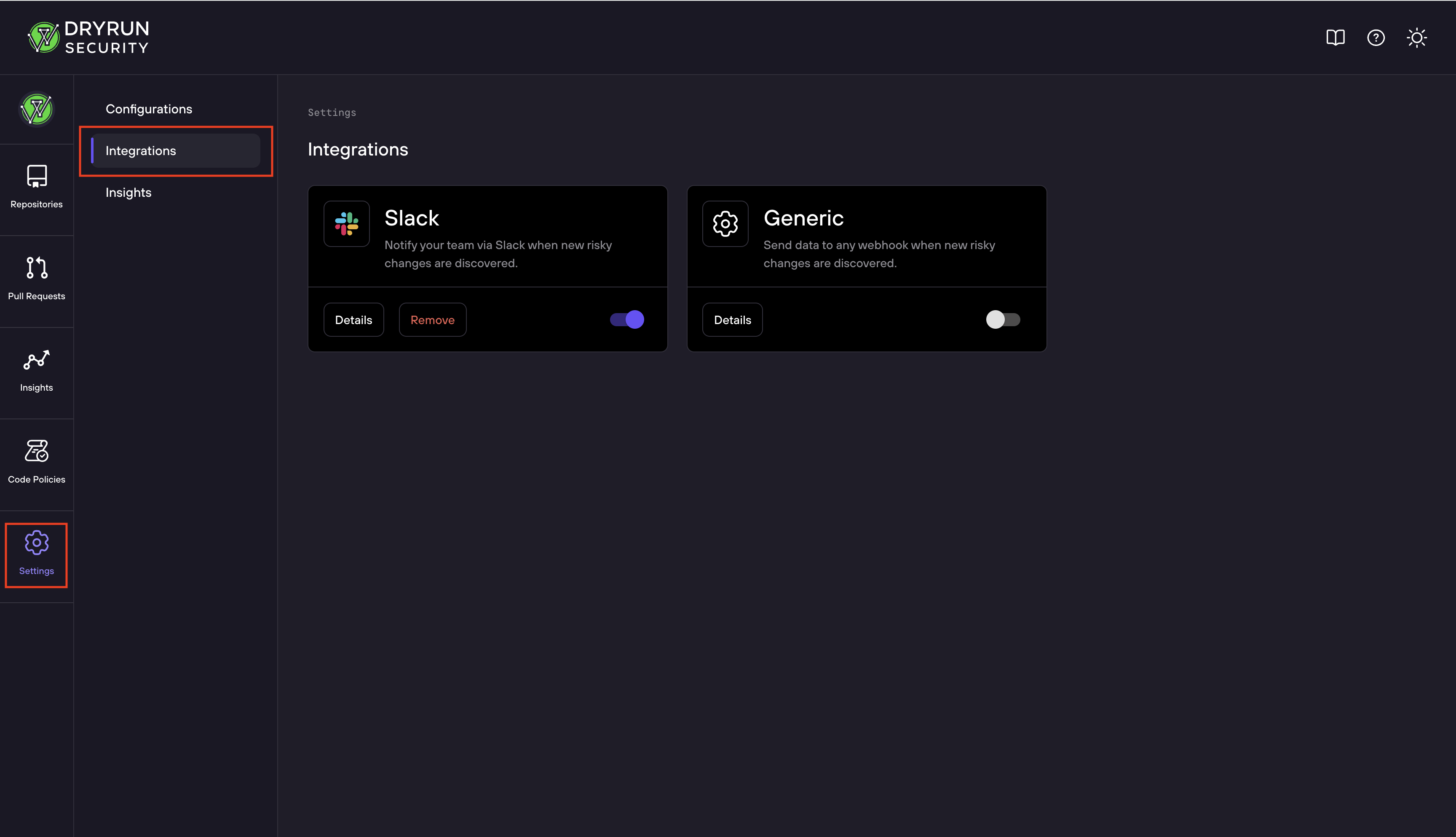
The Integrations page in the DryRun Security dashboard shows available notification channels.
Slack Integration
Connect DryRun Security to Slack for real-time security alerts.
Generic Webhook
Configure a generic webhook to send notifications to any HTTP endpoint.
Integration Scope
Global integrations notify on findings across all repositories in your organization.
Targeted integrations notify only for specific repositories.
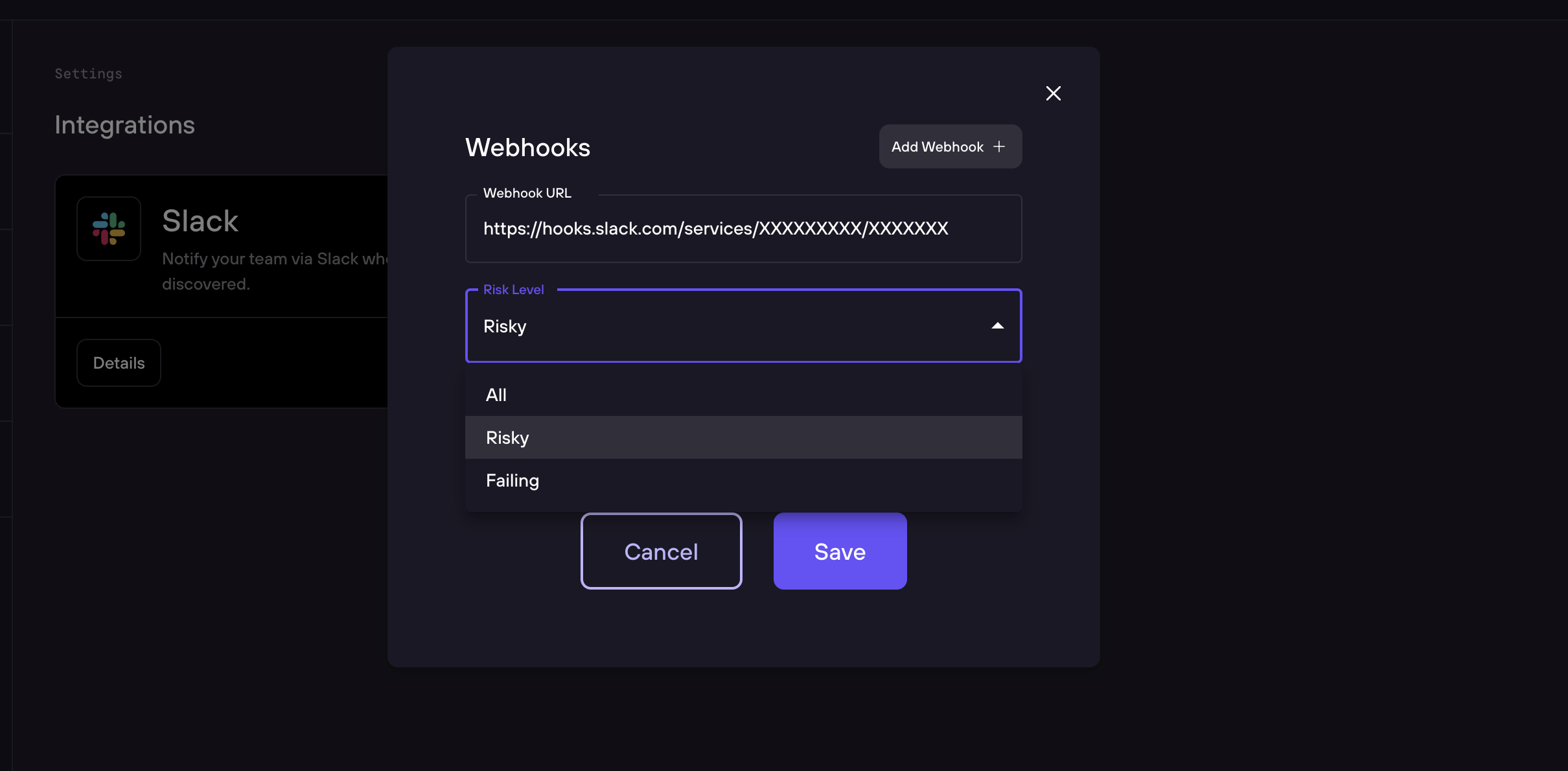
Risk Level Triggers
Configure which risk levels trigger notifications.
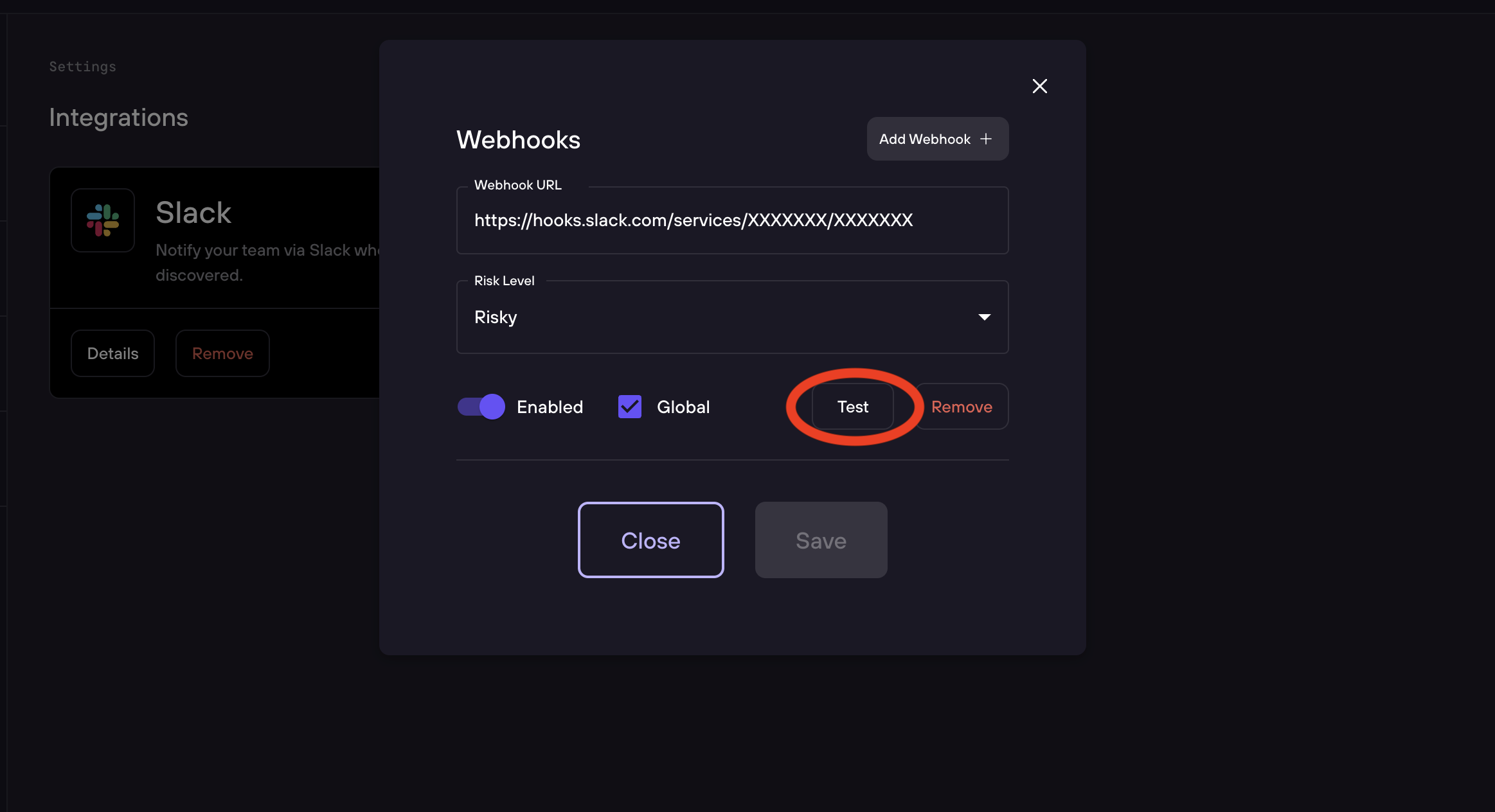
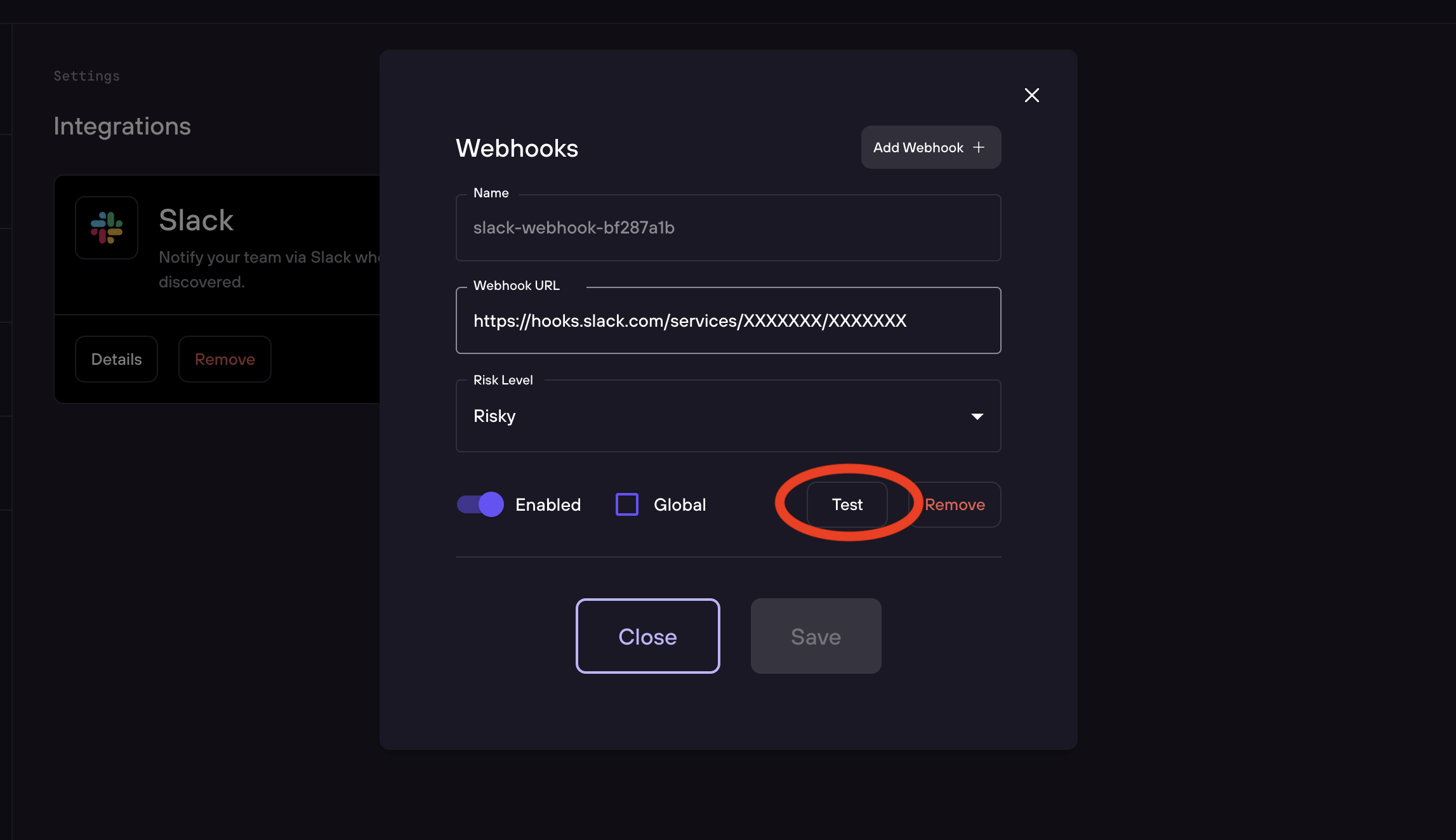
Use the test button to validate your notification configuration.
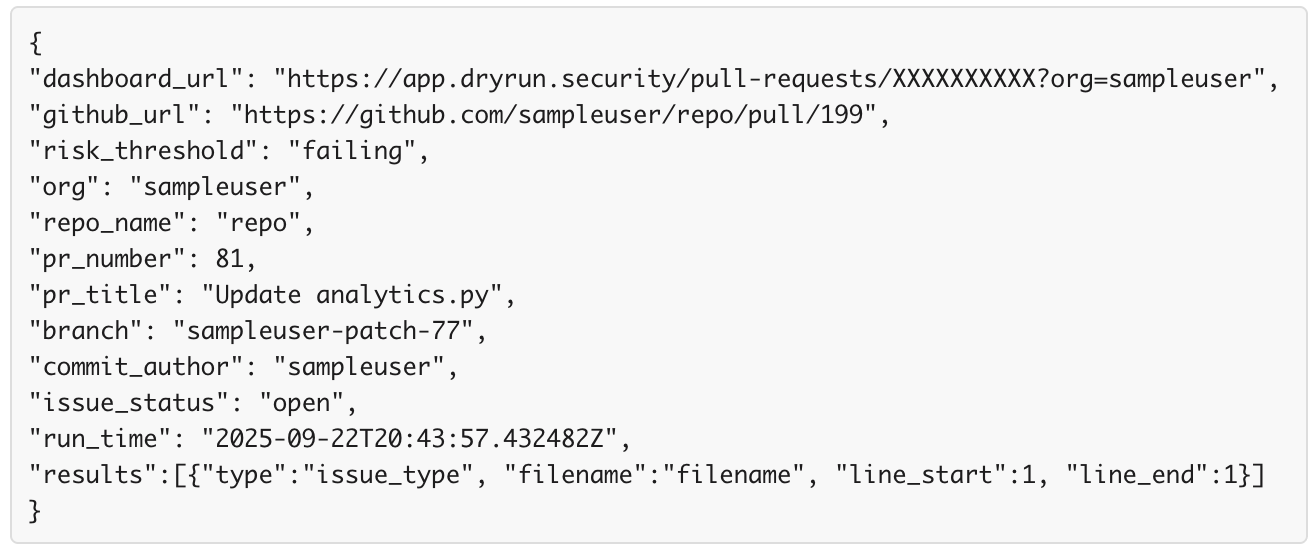
Webhook Format
Example JSON body sent by the generic webhook:
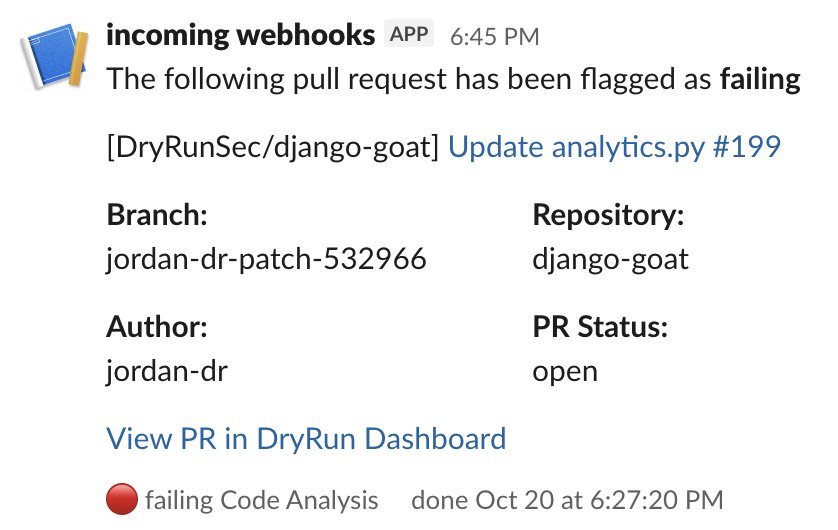
Example of a Slack notification message:
Configure a Global Integration
A global integration works across all repositories in your organization with no additional configuration required.
- Log in to the DryRun Security portal at https://app.dryrun.security.
- Navigate to Settings, then click Integrations.
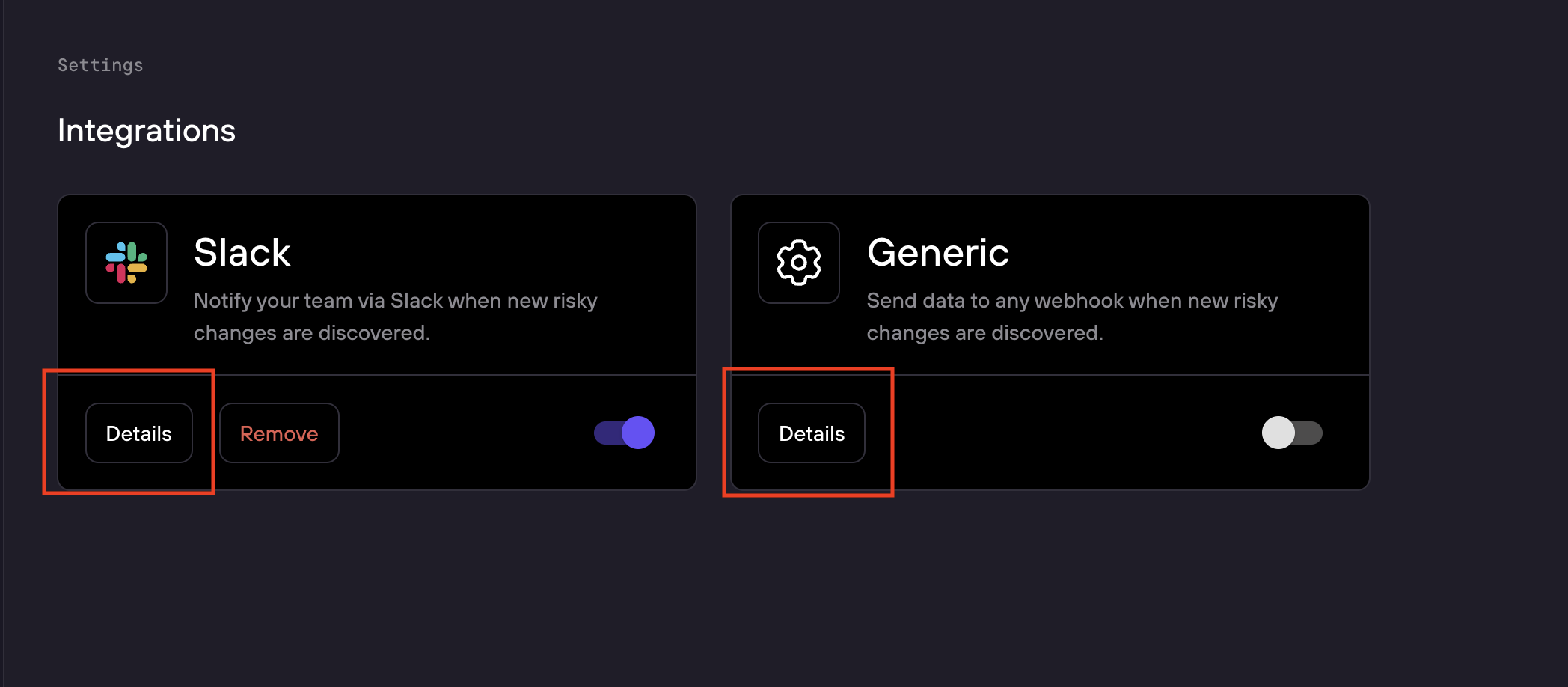
- Click Details on the integration card you want to configure.
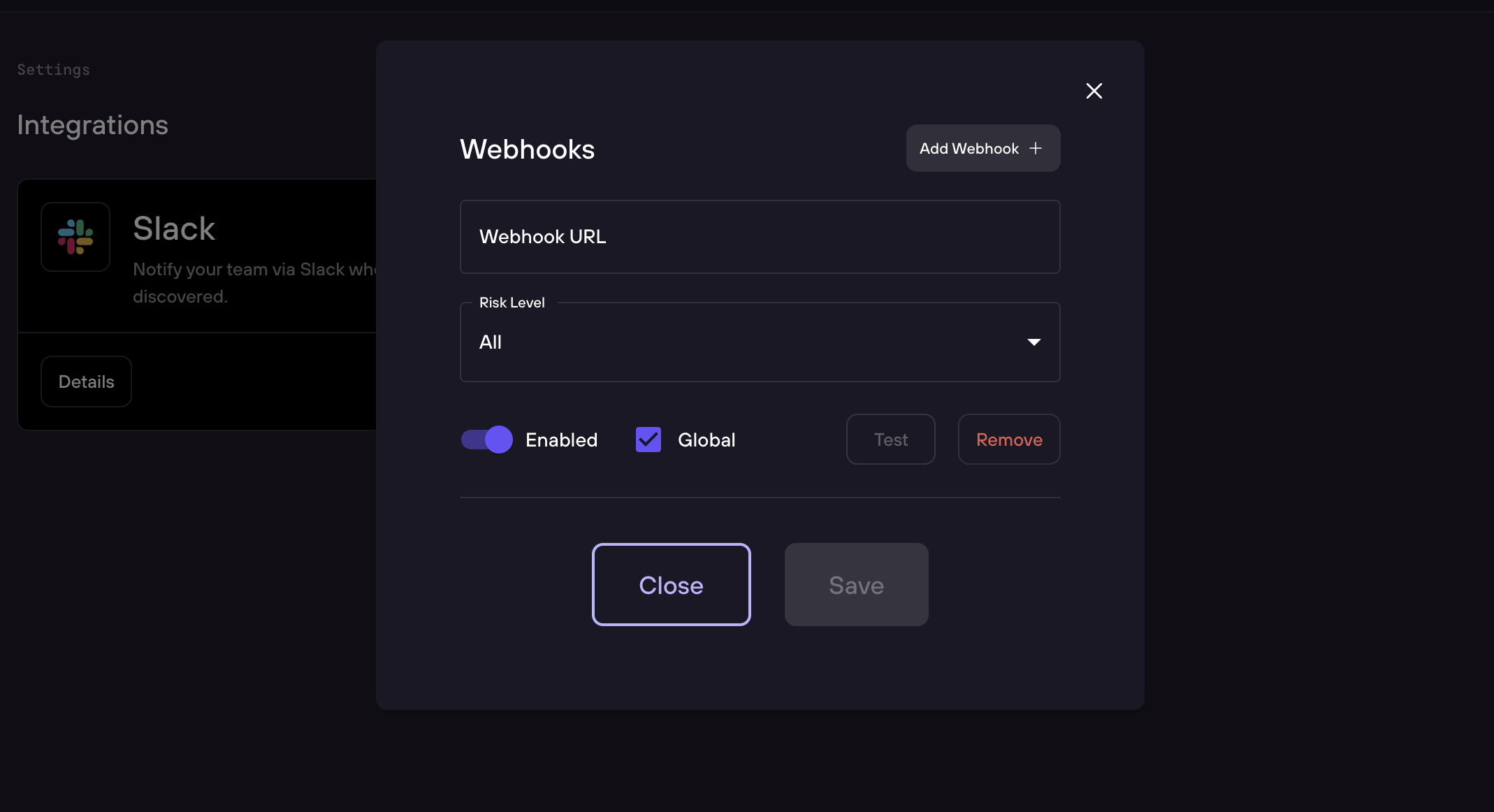
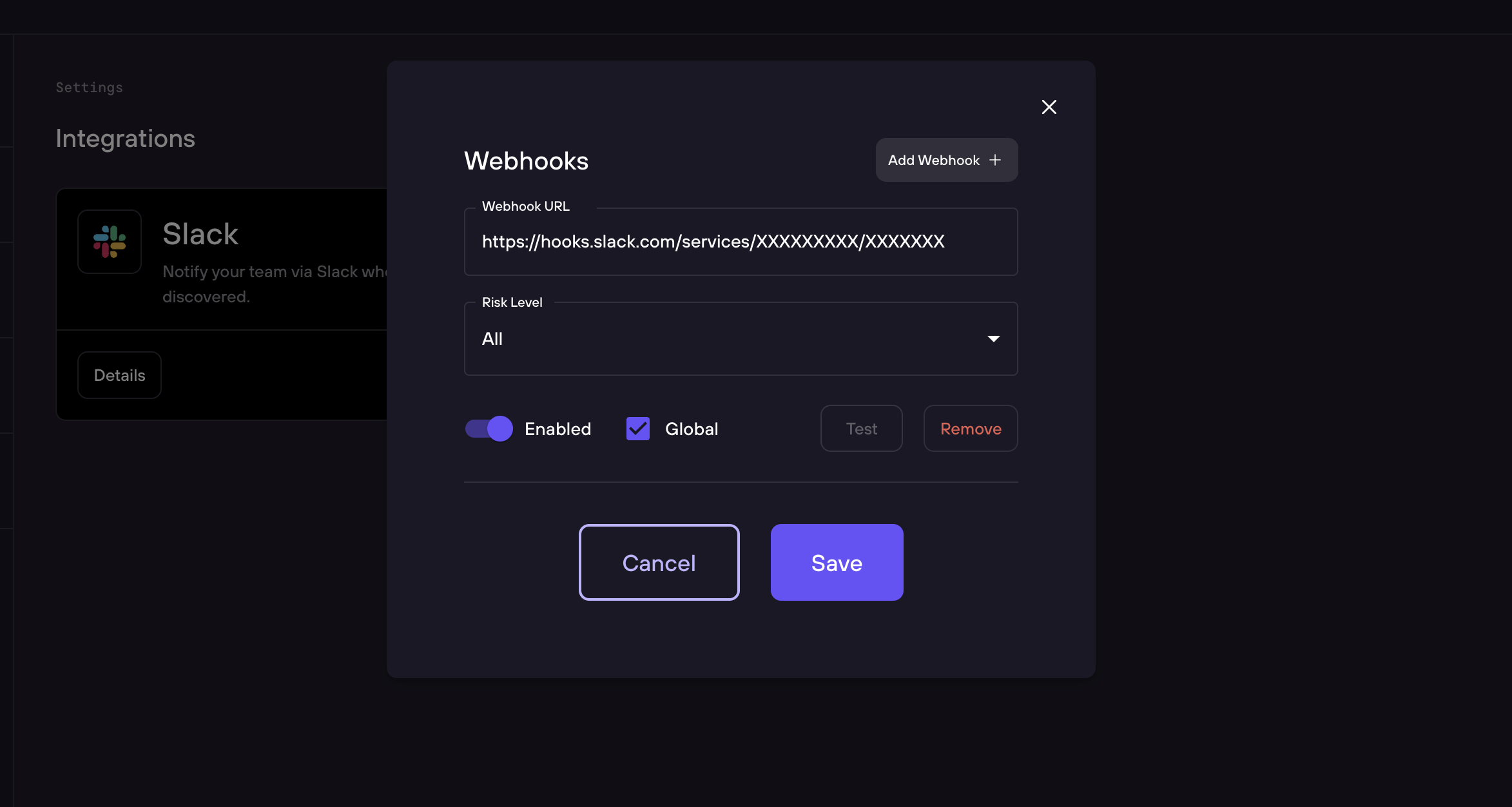
- In the Webhook URL box, add the URL for the target webhook to receive notifications.
- Choose a Risk Level. Notifications will be triggered when a change has a risk at or above the chosen level.
- Leave Enabled selected.
- Leave Global checked.
- Click Save.
Once saved, the Test button will be enabled. Click it to send a test message to the Webhook URL to validate the setup.
Configure a Targeted Integration
A targeted integration can be used to receive notifications about one or more specific repositories. It must be assigned to a Configuration.
- Follow steps 1–5 above.
- Leave Enabled selected.
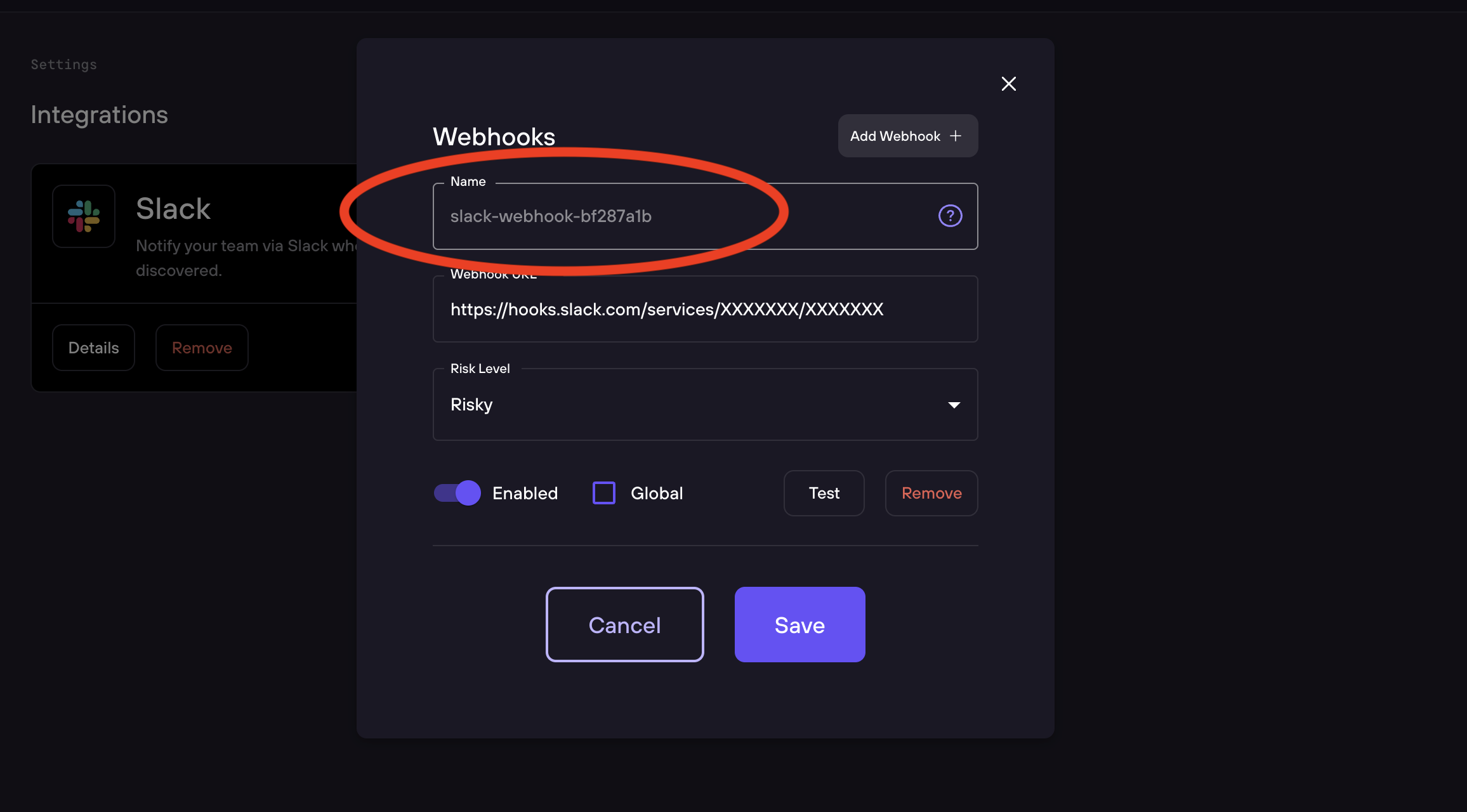
- Uncheck the Global option. A Name box will appear - this name is used to reference the integration in a Configuration.
- Click Save, then click Test to validate.
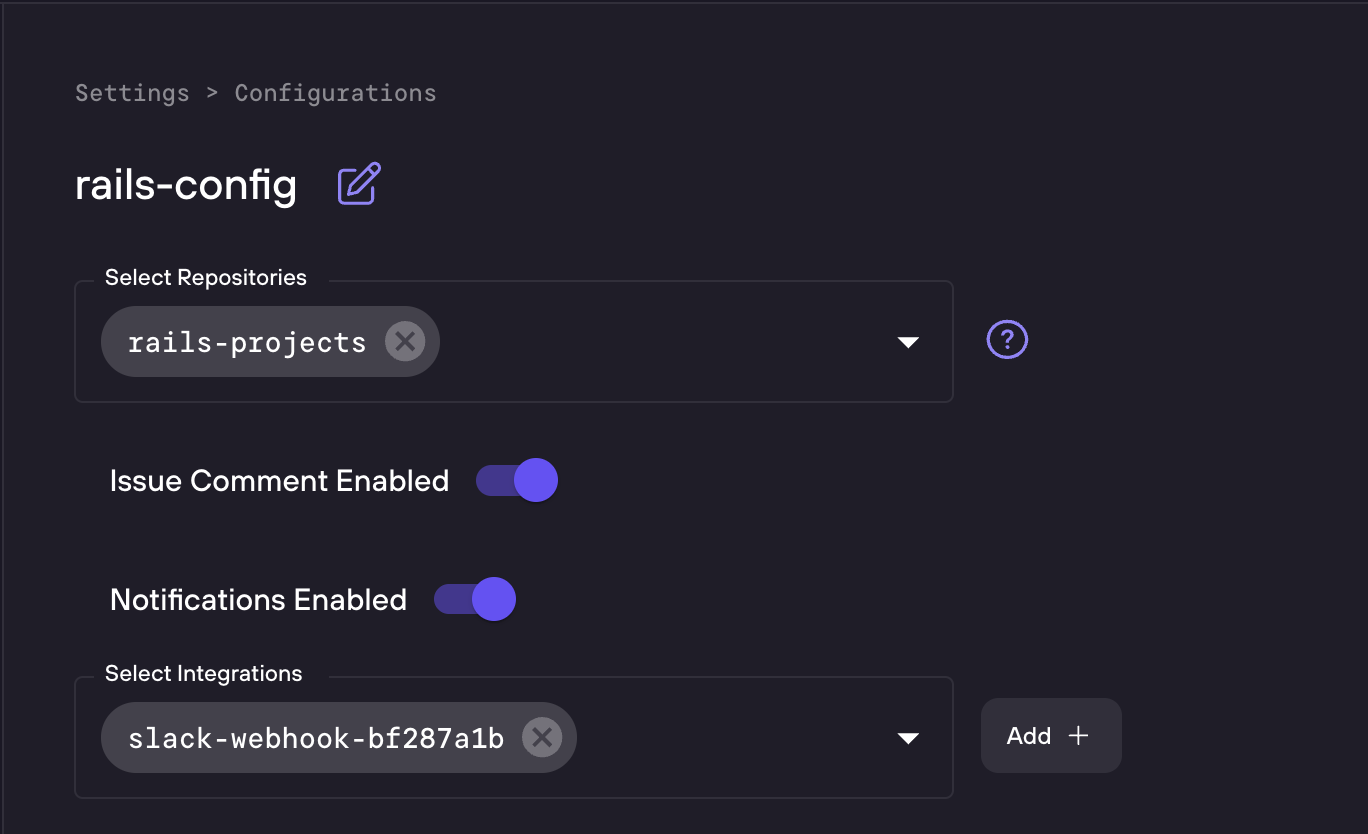
Note: You'll need to add your webhook to a Configuration before notifications will be sent.
Add Notification to a Configuration
- Navigate to Settings > Configurations.
- Select the Configuration you want to edit.
- Toggle on Notifications Enabled.
- Select the desired webhook name(s) from the Integrations dropdown.
- Click Save.
Changes in the repository that match the integration's risk level will now trigger a notification.